Facebook holds a special place in the social media pantheon. In 2010, it became the first social platform to reach 500 million monthly active users, and it has retained its number one position since. As of 2023, Facebook claims nearly three billion monthly active users—and it’s the only social platform to have been the subject of an Oscar-winning film.
These numbers alone demonstrate the importance of Facebook for business owners. If you want to meet your customers where they are, the world’s most popular social media platform is a good place to start.
Becoming proficient with Meta (Facebook) Business Managercan help you efficiently manage marketing activities across multiple brands and coordinate with employees and agency partners. Here’s an overview of Business Manager’s capabilities and how to use it for your ecommerce business.
What is Meta (Facebook) Business Manager?
Meta Business Manager (formerly Facebook Business Manager) is a tool designed to help business owners connect with customers and sell products across its social media properties. Business Manager is a central dashboard for business settings, billing and payments, assets, ad accounts, and permissions. Business owners can use it to control who can access a page, coordinate with employees and agency partners, and manage multiple accounts from one location.
Meta Business Manager works with Meta Business Suite, a comprehensive set of tools for managing platform activities, and Meta (Facebook) Ads Manager, the platform’s ad campaign management tool.
Key features of Meta (Facebook) Business Manager
- Business account management
- Permissions management
- Ad account management
- Asset management
- Business tool management
Meta Business Manager serves as a one-stop shop for managing the back end of your Facebook and Instagram business accounts. Here’s an overview of the tool’s key features:
Business account management
Business Manager allows owners to separate business and personal accounts. Although you’ll need a personal Facebook profile or Instagram account to sign up for Business Manager, consumers won’t see your personal information when interacting with your business. Business owners who manage more than one brand or agencies that partner with multiple clients can manage multiple Facebook pages from one Business Manager profile.
Permissions management
Business Manager controls access and editing rights for your business page and business-related assets such as ad accounts, Facebook custom audiences, verified domains, and the Meta pixel (retargeting cookies). You can use Business Manager to grant or revoke employee access and add agency partners to your accounts.
Ad account management
Business Manager allows business owners to manage multiple Facebook ad accounts from one centralized location. You can create ad accounts in Business Manager or connect existing ad accounts to your profile. Agencies can also use the tool to request access to client accounts.
You can use Business Manager to create ad accounts and manage ad settings, billing, and permissions, but not to create ad content or manage individual campaigns.
Asset management
You can use Business Manager to see all your Facebook assets, such as apps, catalogs, and creative folders, in one place; manage asset permissions; and organize assets into groups. Connecting or uploading assets to the Business Manager can make it easier to find what you need and ensure that your employees or agency partners have the proper level of access.
Business tool management
You can use Business Manager to create or connect Meta pixels, ad accounts, catalogs, or event source groups. For example, you can create a catalog in Business Manager and navigate to Commerce Manager to access advanced features—or you can create a catalog in Commerce Manager and then connect it to your Business Manager account. In either case, linking these tools and assets to your Business Manager profile lets you view your business information and manage permissions from the dashboard.
How to get started with Meta (Facebook) Business Manager
- Sign in to Facebook
- Navigate to Business Manager
- Create your Meta Business Manager account
- Connect your Facebook Business page
- Connect your Facebook ad account
- Add users
- Connect social accounts
Meta Business Manager accountsare free of charge, and creating one can simplify the task of managing your business assets and permissions. Here’s how to get started.
1. Sign in to Facebook
Sign in to your personal Facebook account. If you don’t have a personal account, visit Facebook.com to create one.
2. Navigate to Business Manager
Go to business.facebook.com and sign in again if prompted. Once you’ve signed in, click Create Account.
3. Create your Meta Business Manager account
Enter your name, your business name, and your business email address, then click Submit. Facebook will create your account and take you to your Business Manager dashboard.
4. Connect your Facebook Business page
Click Setup Guide at the top of the toolbar on the left side of your browser window. Click Add Business Assets and then select Facebook Page. If you already have a business page, click “Claim an existing Facebook Page” and enter the page name or URL.

If you don’t yet have a page for your business, click “Create a new Facebook Page,” add your page name and category, and click Create Page. You can customize your page now or later by adding a profile picture, a cover photo, and your business details. When you’re finished, click Done to save your edits.

5. Connect your Facebook ad account
Navigate back to your Business Manager dashboard, select Setup Guide, and click Create Ad Account. Then click Add Assets and select Advertising > Ad Account. From here, you can either select Create a New Ad Account or “Claim an existing ad account.”
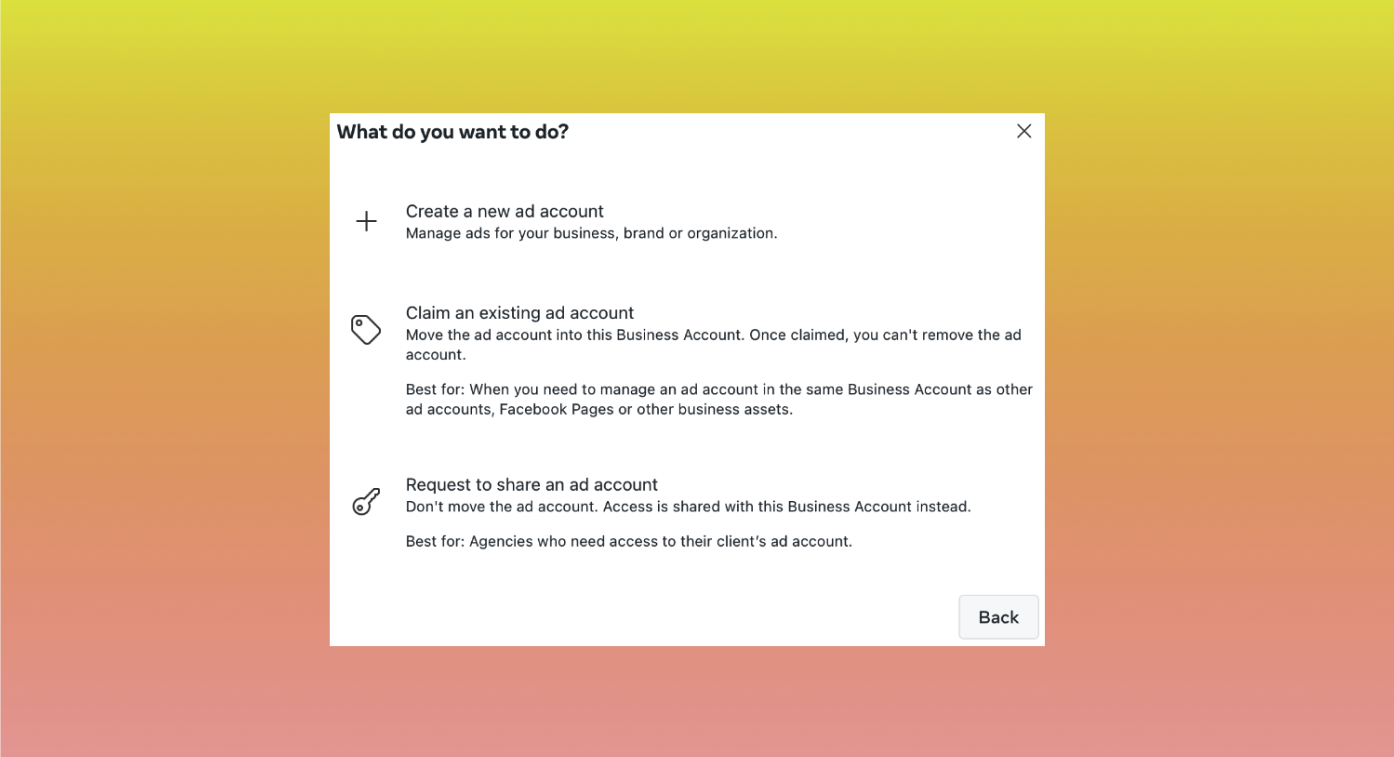
If you want to connect an existing account, you’ll need your ad account ID. You can find it in the dropdown menu of your Meta Ads Manager dashboard.

6. Add users
Navigate back to the Setup Guide page and select Invite People. The displayed window will show everyone with access to your business assets. Click Select People on the top right corner and enter the email address of the person you’d like to add. Follow the prompts to assign access level and manage asset-specific permissions. When you’re done, click Next to review your invitation and send the request.

7. Connect social accounts
You can also connect WhatsApp and Instagram business accounts to Business Manager—Facebookowns both platforms. Navigate to the Setup Guide, click Add Assets. Select Instagram Account or WhatsApp Account from under Socialin the pop-up box. The system will prompt you to sign in to your accounts to complete the connection.

Best practices for using Meta (Facebook) Business Manager
- Manage security and permissions
- Connect partner and system users
- Use business asset groups
- Connect data sources
Meta Business Manager works alongside tools like Business Suite, Ads Manager, Events Manager, and Commerce Manager. What makes it distinct is its ability to provide a comprehensive back-end overview of connected assets, tools, and users. These best practices can help you make the most of Business Manager’s capabilities:
Manage security and permissions
You can use Business Manager to see an overview of all user permissions and manage security settings. To manage security settings, navigate to your Business Manager Dashboard and select Business Settings > Security Center.
From here, you can turn on two-factor verification, verify your page, and manage admin access. You can also visit Business Settings > Users to view all users with access to your account and review and manage individual permissions.
Connect partners and system users
Business Manager allows you to grant access to agency partners and system users. Agency partners are advertising or marketing companies contracted to manage social content or ad campaigns, and system users are servers or software integrations that require authorization from your account. To connect partners, visit Business Settings > Users, select either Partners or System Users, click Add, and follow the prompts.
Use business asset groups
Business asset groups can make it easier to organize your assets and manage who has access to what. This tool can be particularly helpful if you have many assets or manage multiple brands.
To create a group, navigate to Business Settings > Accounts > Business Asset Groups and click Create Business Asset Group. You can then sort assets by brands, regions, agency, or other. When you’re done, you specify permissions for each asset group and assign users to the group.
Connect data sources
Connecting data sources to Business Manager allows owners to view key information and manage access from one central location. To connect data, visit Business Settings > Data Sources. From here, you can connect data sources including pixels, catalogs, offline event sets, datasets, shared audiences, and custom conversions.
Meta (Facebook) Business Manager FAQ
Is Facebook Business Manager free?
Yes, Meta (Facebook) Business Manager accounts are free to use.
Do you need a Facebook account to use Business Manager?
You need a personal Facebook or Instagram account to sign up for Business Manager. Facebook separates personal and business profiles, so your business customers and coworkers won’t be able to see any of your personal information.
What is the difference between Facebook Ads Manager and Business Manager?
Ads Manager allows business owners to create and manage ad campaigns, and Business Manager provides an overview of multiple assets, tools, and accounts. You can use Business Manager to create ad accounts and manage ad settings, billing, and permissions, but not to create ad content or manage individual campaigns.