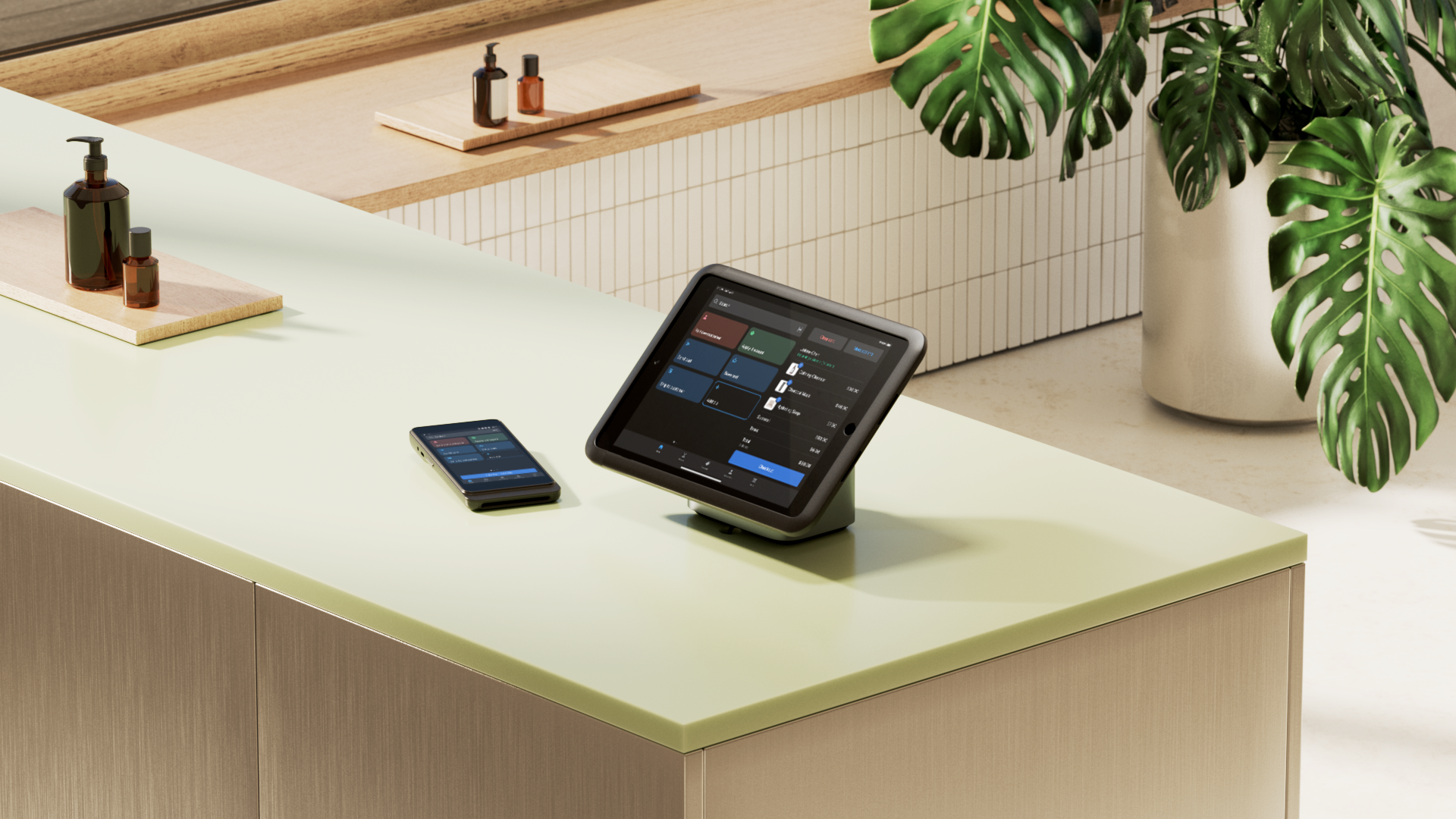
A point-of-sale (POS) system is the heart of any retail business. It describes the combination of software and hardware that powers all aspects of your retail operations.
A POS system unifies sales, customer, and inventory data from any sales channel. It gives you one point of reference, combining multiple functions within a single system to reduce operating costs and improve efficiency.
Without one, you’ll struggle to process digital payments, ring up orders quickly, and track inventory. It also becomes much harder to personalize the retail experience at scale.
But navigating the POS system setup process can be daunting, especially if you’re new to the technology. This guide shares how to configure a POS system, with use cases and examples to speed up the POS implementation process.
Components of a POS system
A POS system encompasses two distinct components: hardware and software.
POS hardware
POS hardware is physical equipment that allows you to manage aspects of your retail store from the POS system. You can ring up orders, take payments, and scan products with hardware compatible with your system.
Here’s what the typical POS hardware stack looks like:
- POS terminals
- Touchscreen monitor
- Barcode scanner
- Receipt printer
- Cash drawer
- Card reader
POS software
POS software is the operating system that powers your hardware. Retail associates use it to process transactions, locate products, view inventory levels, reference customer data, and generate sales reports from the POS device.
Some POS software is exclusive to the POS vendor’s hardware. Others, like Shopify, have a POS app that is compatible with most smartphones. This lets you process payments using Tap to Pay, bypassing the need for a traditional cash register and using your existing device as a small business POS system.
How to use a POS system: A six-step guide
A POS system is at the center of your entire retail operation. It can do everything from collecting payments to running loyalty programs, creating a seamless shopping experience.
Once you’ve set up your POS system, here’s how to use it.
1. Log in and start your day
Whether you’re working onsite at your brick-and-mortar store or running an online shop, you’ll start your sales day by logging into your POS system.
In some cases, your POS system can also help you manage your staff. Whether you’ve hired sales associates, visual merchandisers, or store managers, your POS system can help you organize their workload and stick to labor budgets.
Shopify’s POS system lets you:
- Attribute sales to staff members if you’re offering a commission
- Assign custom roles to staff with the correct permission levels
- Let retail staff clock in and out of their shift
- Give staff a unique PIN to sign in to the POS system and bolster security
- Require manager approval for specific actions
- Integrate staff reports with accounting software and payroll apps like Gusto for timely payouts
Say, for example, that you’re training new retail sales associates to use the POS device. You don’t want to give this person full unlimited access to your POS systems. Instead, use Shopify’s “Training” role. Without manager approval, it will limit their ability to process sales transactions, update inventory quantities, and change the POS system settings.

💡Pro tip: Customize your homescreen with a smart grid. Pinning your most frequent actions or popular products to the grid lets you navigate the interface instinctively before your first customer walks in.
2. Start a sale and add items to cart
The retail experience lives and dies at the checkout. Long lines or a bad user experience can deter shoppers from buying items in their carts.
If a customer is shopping in person, you start a sale by scanning barcodes of the items in their physical cart. If they’re shopping online, they’ll add items to their cart directly and start their sale on the checkout screen. Some POS systems let you attach an existing customer profile to the order, or create a new one, to unlock personalized pricing, view past purchase history, and send tailored notifications.
The quicker you can ring up an order and process a customer’s payment, the better. Modern POS systems have a wealth of features that speed up checkout, like:
- Scanning barcodes to add products directly to the cart
- Letting customers choose between email or paper receipts
- Mobile checkout options that let you start a sale without requiring the customer to wait in line at the cash wrap
Clothing retailer RUDSAK, for example, transitioned from Microsoft Dynamics 365 to Shopify POS to elevate their omnichannel experience. It got access to a unified customer base and the ability to offer seamless shopping options, resulting in a 50% faster in-store transaction time than pre-migration.
💡Pro tip: If an item isn’t on the shelf, use your POS to check stock visibility across your other locations. If you use a unified system, you sell from a single inventory view, preventing lost sales from local stockouts.

3. Apply discounts and taxes
Most POS systems let you apply manual discounts at the line-item or entire-order level. Depending on your settings, the system will prevent incompatible discounts from stacking and will show the final adjusted price before checkout.
For broader promotions, many POS systems also support automatic discounts and promo codes that apply when certain conditions are met, so your staff don’t need to memorize complex promotion rules.
POS systems typically calculate taxes automatically based on the device’s assigned location though you retain the ability to adjust or override them for tax-exempt customers or specific products.
With Shopify POS, any discount rules or tax settings you configure in your admin sync automatically to the checkout, so staff always apply the correct pricing without extra steps.
4. Accept customer payment
Most POS systems allow you to accept credit, debit, or cash. Once the customer chooses their payment method, follow your system’s onscreen prompts to accept it.
Shopify Payments for POS allows you to:
- Accept multiple payment methods: Credit and debit cards, gift cards, contactless, digital wallets, and even interest-free payments with Shop Pay Installments
- Benefit from competitive payment processing fees to reduce POS system costs
- Trigger automatic payout to your business bank account
- Manage and reconcile chargebacks
Don’t worry if you don’t have POS hardware, such as a card reader or payment terminal, to accept payments in-store. Shopify’s Tap to Pay feature turns your smartphone into a card reader. Shoppers can tap their contactless card on your device to pay for in-store purchases.

💡Pro tip: Offer buy now, pay later (BNPL) options like Shop Pay Installments right from your POS. Customers can purchase high-ticket items with more flexibility and it won’t complicate your reconciliation process.
5. Complete the sale and issue a receipt
Once the payment clears, it’s time to wrap things up. You can always stick to a printed receipt, but offering to email or text it is a smarter move. It’s a natural way to collect contact details so you can keep the conversation going long after they leave the store, and hopefully create a loyal customer.
And if they’re buying a present? Issue a gift receipt on the spot to save everyone a headache later.
✨Shopify Power-Up: Customize your digital receipt by going to Point of sale under the Sales channels tab in your Shopify admin. Click Receipt customization and use the design features to add your own logo, change the header, and add extra order information.

6. Handle returns and exchanges
Returns are a $850 billion problem for retailers, but the right POS system can help save the sale.
Most POS systems let you process full or partial refunds directly. When you complete a return, the system typically restocks the items to the correct location to keep inventory accurate. Many systems also support issuing store credit, refunding to the original payment method, or handling returns for items purchased online or at another store location.
If your POS supports exchanges, you can usually swap items within a single workflow by adding the new item, calculating the price difference, and finalizing additional payment or refund in one streamlined process.
Shopify POS allows you to manage returns and exchanges from any sales channel in one flow, with inventory and customer profiles updating automatically.
Advanced POS features to grow your business
Manage inventory across locations
Inventory management is a challenge for many retailers. You need enough stock on hand to sell to customers and prevent stockouts, but holding too much inventory inflates carrying costs and increases the likelihood of dead stock.
A POS system solves this issue by giving real-time inventory reports. You’ll be able to:
- Automatically update inventory quantities when you record a sale on the POS system
- See exactly how many quantities of each stock keeping unit (SKU) you’re holding
- Spot slow-selling and fast-moving products to make smarter restocking decisions
- Get notified when a specific SKU drops below a predetermined threshold
- Create purchase orders for vendors or suppliers
Plus, you can skip the manual cycle counts when you have compatible hardware (such as barcode scanners). Point the scanner at a product tag, and the quantities are automatically updated in your POS system.
Offbeat Bikes is just one retailer that’s moved to Shopify after a disjointed inventory management system.
“I had to use a third-party software to sync inventories between the Squarespace website and Square POS, which was complicated to manage,” owner Mandalyn Renicker says. “Even then, I still had to manually count inventory levels because we kept running into errors on both systems.”
Mandalyn migrated to Shopify POS in a bid to streamline inventory management and improve the customer experience. It paid off: Offbeat Bikes’ retail team now saves over four hours per month on inventory management.
Sell anywhere
The logistics of managing omnichannel sales becomes much easier when you’re working from a unified POS system. A unified system lets you manage online and in-store orders from the same place, making it easier for customers to move between channels without disrupting the sales flow. Shopify, for example, has the following features to offer omnichannel purchasing experiences:
- Alternative fulfillment options: Fulfillment options like buy online, pick up in-store (BOPIS), ship-to-home, and local delivery let shoppers switch between online and offline channels within a single transaction.
- Omnichannel returns: Let customers return online-bought items in-store (and vice versa) with a unified POS system that combines sales and customer data inside one centralized dashboard.
- Email carts: Influence in-store shoppers to buy even if they leave your store empty-handed. Add the products they were interested in into your POS cart, then email it to the customer. They can check out at home with a personalized checkout link.
- Product QR codes: Store visitors can point their camera to a product’s QR code to locate the product page on your online store. This is great for busy shopping seasons when you don’t have enough sales associates on hand, or for shy customers who prefer to shop without assistance.
“Shopify is unlocking rapid international expansion for us,” says Rohit Nathany, chief digital officer at Mejuri. “With Shopify, we can fulfill online orders from that store, which will drastically cut down delivery times, costs, and result in happier customers. It’s a win-win.”
Manage and organize product selection
Your product assortment grows as your retail business does, which presents its own set of challenges. Sales associates might struggle to locate products on your POS system when ringing up customer orders. It can also be difficult to uncover inventory levels when the product listing is tricky to find.
Shopify’s POS system lets you add unlimited products and variants, each with its own SKU, weight, and inventory quantities.
From there, you can categorize each product to make it easier to locate in the POS:
- Type: A fashion retailer could tag items by material, such as “cotton” or “polyester.”
- Season: A sporting goods brand might group products by winter or summer sports.
- Promotion: A home furnishings brand could group products with free shipping.
Build unified customer profiles
A good POS system helps retail associates personalize the shopping experience by giving them quick access to relevant customer information. It can serve as an assistant, storing details about the customers who visit your store so your staff don’t have to remember them all.
With Shopify POS, unified customer profiles bring together the data you’ve collected about a shopper across channels, including:
- Their birthday
- Retail stores they’ve visited
- Products they’ve bought
- Conversations they’ve had with sales associates
- Email campaigns they’ve opened
- Loyalty points they’ve earned
- Products they’ve returned
- Their customer lifetime value (CLV)
“With Shopify, we can easily look up a customer’s previous orders and make our in-store service feel like a natural extension of what they experience online,” says Gosia Piatek, founder and creative director at Kowtow.
Say your retail associate approaches a customer browsing a hockey stick collection. They ask for the customer’s name and pull up their customer profile on the POS device. They discover that it’s both the customer’s birthday month, and that they have 500 loyalty points to redeem. Using that context, the associate can recommend a higher performance item, remind them about their available credit, and add a small birthday perk to encourage the purchase.
Generate sales and product reports
Regular monitoring is the only way to know whether your store is improving. This applies to every aspect of business operations, from foot traffic and sales to product performance and inventory reporting.
Unlike manual reporting, you don’t have to waste time conducting inventory counts or tallying up sales. Your POS system can keep a record of all transactions and generate reports based on data it has collected.
Here’s what those POS reports might look like:
- Sales reports: Track metrics such as average order value (AOV), conversion rate, and net sales. These are useful benchmarks to spot sales trends and monitor the effectiveness of marketing campaigns. For example, you might see that sales decline when the weather is bad. Counteract this with a “rainy day” promotion that gives shoppers a 10% discount on in-store purchases.
- Product and inventory reports: What are your top-selling products? Which contribute the least revenue to your store? Aside from answering these top-level questions, POS product reports help make smarter marketing decisions. For example, if people tend to buy two products together, can you bundle them together?
- Customer reports: Monitor your success at retaining customers by tracking metrics like returning customer rate, purchasing frequency, and lifetime value. Again, this is useful to track marketing effectiveness. Metrics that trend upwards indicate that your post-purchase campaigns drive customers back.

Market to your customers
The best POS systems aren’t just machines to ring up orders, take payments, and view reports—they also let you market to your customers without a disjointed tool stack of marketing apps that don’t speak to each other.
Shopify, for example, lets you do the following tasks once you’ve designed the POS system:
- Capture email addresses at checkout for future retargeting—a feature that’s already helping Shopify retailers increase retail transactions by 5.5%
- Send an automated email that encourages customers to leave a review
- Create and redeem discount codes for online and in-store purchases
- Apply and redeem rewards through your POS loyalty program
- Upsell or cross-sell products via email based on their purchase history
These marketing tools pull data from—or add data to—your unified customer profile. This helps further personalize their experience and increases customer loyalty.
If someone visits your store and buys a scented candle, for example, you might enroll them in an automated email sequence that cross-sells oil diffusers and room fragrances made with the same scent. They purchase one of these products from your online store.
When they do so, they’re removed from the original sequence. They’re moved to another email automation that drives them back in-store to redeem loyalty points they earned on their online order.
Customize your POS UI
Every retailer uses their POS system in a slightly different way. One brand might be heavily into discounting, whereas others have a vast product catalog that spans multiple categories.
POS UI extensions let you customize the interface to complete tasks more efficiently. In Shopify POS, the Smart Grid lets you configure tiles that display your most frequently used resources.
A retailer that leans into discounts might add a tile to the Shopify Smart Grid, letting sales associates locate the discount with ease. Retailers with a wide product assortment might customize the Smart Grid to display product categories, so POS users can tap the category to locate the product instead of barcode scanners.
Shopify uniquely allows retailers to create UI extensions not just for native functions, but also for any POS integration, such as:
- Loyalty apps
- Staff management apps
- Inventory management apps
- Product bundling apps
- Customer relationship management (CRM) apps
- Pickup and delivery scheduling apps
Say you’re an omnichannel retailer that accepts BOPIS orders. Customers who purchase online can choose their pickup slot through the Zapiet app. By adding this app to your POS interface, retail associates can click the tile and see upcoming orders, so they can prepare them before the customer arrives.
“With POS UI extensions, we're now able to integrate information natively,” says Kevin Harwood, CTO at Tecovas. “So that's going to create a better customer experience without them even knowing that it was enabled by POS UI extensions. But it's a memorable retail moment for customers and I think it'll drive more brand affinity for that experience moving forward.”

Setting up your Shopify POS system
A custom POS system has the advantages of being perfectly tailored to your business, but building one is no small feat. Setting up a POS system that unifies customer, order, and sales data across multiple channels is much easier.
Shopify POS is built for retailers who sell online and in person. It pulls inventory data from one centralized inventory management system, and merges customer data to create unified profiles that give you a 360-degree view of your customers.
The best part? Shopify POS is up to 20% faster to implement than other providers, allowing retailers to launch stores quickly with minimal disruption:
- Log in to your Shopify admin and install the Shopify POS app. Before you start using Shopify POS, you need to set up the Shopify POS app and update the point of sale settings in your Shopify admin.
- Set up locations: This lets you manage inventory effectively across multiple locations and customize the POS UI by store. You can do this in your Shopify admin under Settings > Locations. Repeat this process for every retail store you operate.
- Configure payment methods: Activate Shopify Payments in the POS app to accept credit card, contactless, and digital wallet payments from in-store shoppers. You can also benefit from discounted payment processing fees using Shopify Payments instead of third-party payment processors.
- Connect hardware: If you have any POS hardware (like card readers or barcode scanners), connect them to your Shopify POS app. Find the Settings icon in the POS interface, choose Set up hardware, and follow the instructions on the screen.
- Test your setup: Before going live, run a test transaction to ensure your POS solution works smoothly. The easiest approach is to make a discount code that only charges you 1 cent for an order. Ring up the order, apply the discount, and pay for it. Confirm that the payment goes through and your hardware is functioning as intended. Just remember to update the inventory quantity after the test order.
Sell more with Shopify POS
Setting up the right POS system can be a tedious process, but it's worth it to find the right tool for your retail business. Retailers using Shopify POS have reported an average 8.9% increase in gross merchandise volume, thanks to its unified customer data and omnichannel capabilities. It delivers a 22% better total cost of ownership relative to the market set surveyed by EY.
Shopify’s POS has features that let you do what you do best: sell. From smart inventory management capabilities to omnichannel selling and unified customer profiles, it’s never been easier to set up a POS system that works with your existing commerce tool stack.
How to use POS system FAQ
How do you use a POS system step by step?
To use a retail POS system, log in to your account on the POS hardware. Add items to the cart and ask the customer how they want to pay. Process their payment and provide them with a receipt to complete the transaction. For more information about how to use Shopify POS, visit the help center.
How does a POS system work?
A POS system unifies your sales, customer, and inventory data into a centralized platform. It lets you ring up orders, reference customer data, check inventory levels, process payments, run marketing campaigns, and manage retail staff.
How do you process a POS transaction?
To process an order on a POS system, locate the products a customer has in their cart by clicking it from your product catalog or scanning the barcode on the label. Once all items have been added, tell the customer their order total and ask for their preferred payment method. Process the payment and provide the customer with a receipt.
What are the closing procedures for a POS system?
When it’s time to close up, end your cash tracking session by counting the drawer and entering the final amount. If the numbers don’t quite match up, reconcile those discrepancies right then and there.
Next, close the register in the app, or handle it remotely from the admin if needed, and secure the cash. Finally, pull your register summary and Daily Sales report to get a clear picture of the day’s performance before you head home.