Shopify blog


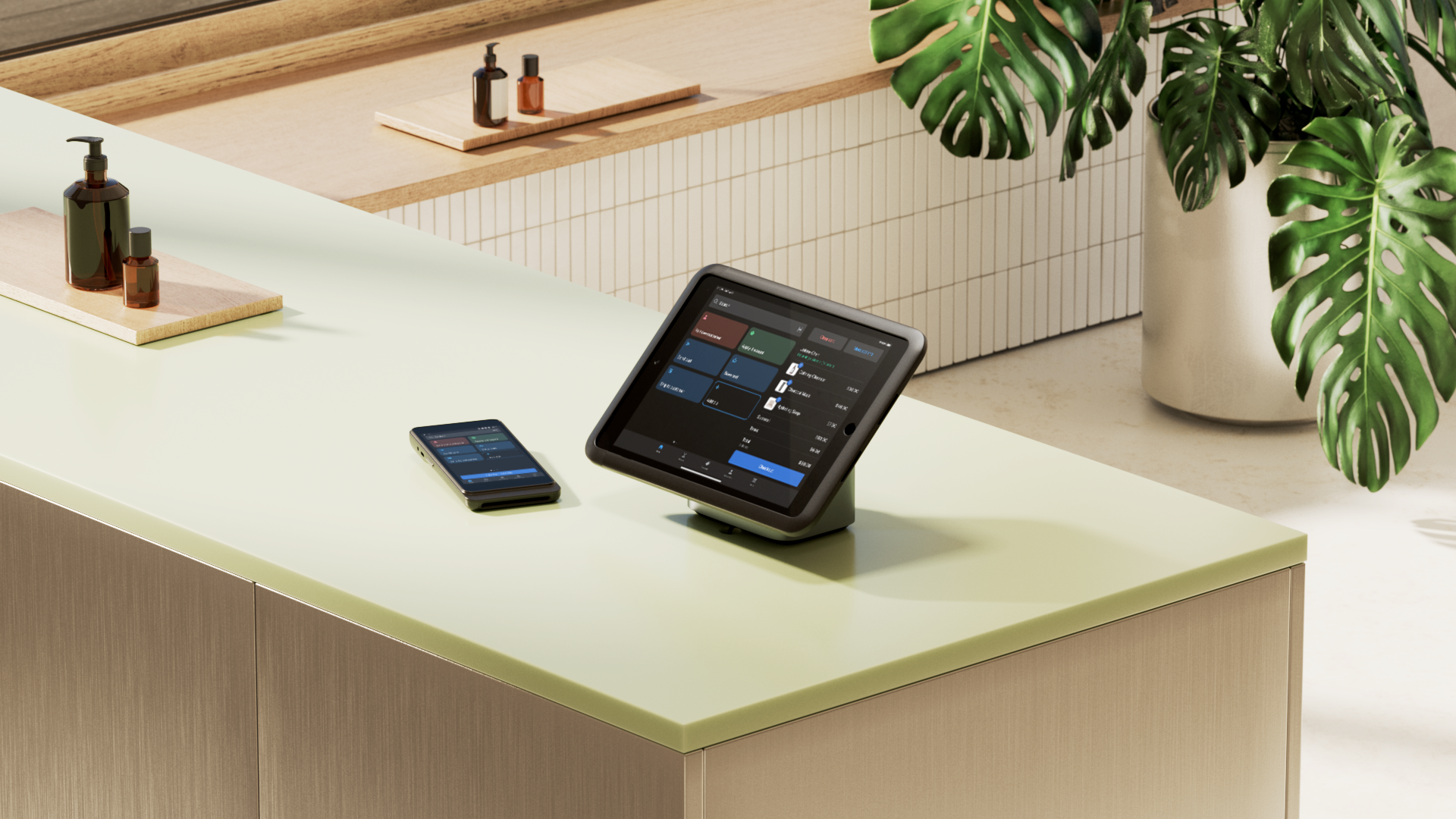
Data is what keeps a retail business moving forward. But for too long, teams have been forced to view it through a fragmented lens, juggling between online dashboards and physical registers.
When legacy systems treat point-of-sale (POS) reports as a mere snapshot of the past, you miss the bigger picture. True retail business intelligence comes from a unified system.
Whether it’s a customer browsing online before buying in-store or a random change in SKU velocity across locations, POS reports help you uncover trends so you can act on them fast.
Ahead, you’ll learn about the top reports for your store and how to use them strategically.
What is a point-of-sale report?
A point-of-sale report is a summary your POS system generates to show what sold and how much money was collected over a period of time. You can also review sales activity for a specific retail location, register, or staff member.
For a retail owner, POS reports help you keep a finger on the pulse of your business:
- It’s how you see your most in-demand products and your busiest time slots.
- It offers real-time data updates so you can make split-second decisions.
- It makes reconciliation easier by balancing your cash drawers and matching physical taking with end-of-day closeouts.
For example, Shopify POS can generate sales reports that help retail teams see sales performance across their store and spot trends over time. You can use these reports to confirm sales activity and support day-to-day decisions like staffing, merchandising, and cash handling.

What a POS report includes
POS reports will vary by platform, but in general, they include the following information:
Sales totals
- Total sales for the time period
- Taxes collected
- Discounts applied
- Refund total and counts
Payment method breakdown
- Cash versus card versus other tender types
- Summary of closed sales and other payment activity
Product and SKU performance
- Bestsellers and slow movers
- Sales by product and SKU (and often vendor/type/category)
Location and performance
- Sales by store/location and sometimes by register
- Sales by staff member (useful for staffing decisions and coaching)
Transaction history
- Voided sales and comps (loss control)
- Transaction history/status for audits and customer issues
Top 4 POS reports your store needs
You can do deep POS data analysis with platforms like Shopify. While you can break down this data with different filters and timeframes, you don’t have to look at everything at once.
Start by focusing on these four reports to get a clear picture of your store’s health:
Sales

Retail sales reports are your moment of truth at the end of your day. They tell you what happened versus what you thought happened. With Shopify, there are a few ways to view sales trends:
- By product, variant (SKU), product type, and vendor. This lets you see if you’re selling hats in general or, more specifically, “Blue Baseball Caps, Size Large.”
- By staff-level performance. You can pull reports by staff member (who processed the sale) or by staff attributed to sale (who actually helped the customer).
- By location. If you have multiple storefronts or a pop-up, you can see exactly which POS Location is pulling the most weight.
Once you have this information, you can make changes to your retail operations to sell even more. For example, you can:
- Move high-performing variants or product types to eye level. If custom sales are appearing too often, it’s a sign you need to officially add those items to your catalog.
- Use the Staff Sales Total to see who has the highest average order value (AOV). Have them lead a morning huddle to share their upselling tips with the rest of the team.
- Use the Staff Daily Sales report to see which days have the highest staff help percentage and ensure you aren’t understaffed during those high-engagement windows.
Inventory

Inventory is basically cash sitting on your shelves. These inventory management point-of-sale reports help you ensure that cash stays liquid and doesn’t just collect dust.
Shopify shows you a handful of inventory reports to make smarter purchasing decisions, like:
- Month-end snapshots and value. Understand your ending quantity and its total cost value at a glance.
- ABC product analysis. Learn which products sold the most (and the least) over the past 28 days.
- Days of Inventory remaining. Look at your average sales velocity and predict how many days of stock you have left before hitting zero.
- Products by sell-through rate. Know what percentage of your inventory was sold during a specific period.
- Inventory adjustment changes. Get a line-by-line trail of every time your stock levels moved, whether it was a manual edit, an app update, a transfer, or an order fulfillment.
Customer

It’s cheaper to keep an existing customer than to find a new one. Customer reports show if you’re building a loyal following or if your store has a revolving door problem.
There are a few key reports in your Shopify admin to get a better hold on customer retention:
- New versus returning. This is the primary retention health check. A first-time customer is anyone placing their very first order, and a returning customer has at least one previous order on the books.
- Customer cohort analysis. This report groups customers by the month they first shopped with you (a cohort) and tracks their behavior over time. It helps you see if the customers you acquired during your big Black Friday sale came back in February.
- RFM analysis. Shopify automatically ranks your customers into 11 groups based on how recently they shopped (Recency), how often they buy (Frequency), and how much they spend (Monetary).
- Predicted spend tier. Using 24 months of your store’s data, Shopify can actually project which customers are likely to become your highest-value fans in the future.
For fashion retailer EVEREVE, unified customer data changed the game for its more than 2,500 stylists. Before Shopify, online and in-store histories were separate, meaning a stylist in-store couldn’t see what a customer bought online.
By unifying their data, they gave their team a complete view of every customer’s journey.
“You now have the confidence that you have a full view of their purchase history, not that their online purchases are in one account ... and their in-store purchases are in a different one,” says Tamer Selim, chief technology officer (CTO) of EVEREVE.
Finance
Finance reports tell you what’s happening in your bank account. These reports are especially helpful because they show if you’re actually making money on your products. Some reports you’ll find in Shopify include:
- Finance summary. A high-level look of your sales, payments, liabilities, and gross profit.
- Total sales breakdown. This report starts with gross sales and subtracts discounts and returns to reach net sales, then adds back taxes and shipping to show your final cash flow.
- Payments by method and gateway. A clear list of how you were paid (cash, Visa, Shop Pay, etc.) and which gateway handled the money.
- Tax jurisdiction reporting: If you’re in the US, this breaks down exactly what you owe your state, county, and city.
How to access POS reports in Shopify
If you’re using Shopify POS, you can access your reports in two places: the Shopify admin and your Shopify POS. The Shopify admin will give you a full report library, while the Shopify POS analytics will give you quick at-a-glance analytics.
The Shopify admin
- In Shopify admin, go to Analytics > Reports.
- Use the Category filter, then choose Retail Sales to show Shopify’s POS-focused report set.
Shopify POS
In Shopify POS, tap ≡, then Analytics to open the Daily Sales report view.
Here you can find insights about your net sales, average order value, and average items per order. You can also compare daily sales to the sales that were made the week before.
The omnichannel advantage: Why unified POS reporting wins
When ecommerce and in-store data live in separate systems, reporting can get confusing. There will always be two versions of a reality: online revenue, refunds, and customer history live in one data set, store transactions and returns in another.
The result is only a partial snapshot of what’s happening in your business. Teams spend too much time reconciling numbers, and leadership makes decisions based on incomplete views of sales performance across channels.
Unified commerce solves that by routing all transactions from retail, ecommerce, social, and marketplace into the operational core. That way, product, order, and customer data all flow into one single source of truth. These modern POS systems have advantages over legacy systems in terms of reporting and data accessibility.
David’s Bridal, a 75-year-old legacy retailer, faced a common problem: aging, fragmented technology that made it impossible to act on data. In just nine months, they were able to accomplish a total digital transformation by moving to a unified Shopify foundation.
One out of every three brides in the US wears a gown from the retailer. With one single source of truth for online and in-store data, their team can now see exactly how each one of them interacts with the brand. “We already have better analytics—those brilliant basics that tell us what’s selling, what’s not selling, and getting really deep into the unified customer profiles are really critical to our business,” says Elina Vilk, president and chief business officer (CBO) of David’s Bridal.
With a commerce platform like Shopify, your ecommerce and POS run on the same infrastructure, so reporting is built on one shared dataset. Everything is updated and real time, so you never go out of stock or miss the chance to connect with a VIP customer.
How to use POS reports to grow
POS reports are most useful when they become part of your routine. Analyzing them helps you stay ahead of the curve instead of waiting to react until something feels off. The best way to use POS reports for growth is to follow these routines:.
Speed up your daily closeout
Before you lock up for the day, use your reports to make sure everything from the shift is accounted for. This can be done by you personally, or by a store manager.
Pull your daily totals to verify sales, taxes, and refunds. Make sure all transactions are fully processed/settled first, as some systems take a few minutes to sync the latest data.
If you accept cash, this is where you should compare expected versus counted. Record your starting float, track cash flow moving in and out, and identify discrepancies immediately so you aren’t hunting for missing bills a week later.
Dive into weekly stats
Once a week, step back from the daily grind and sales totals to look at the why behind your retail metrics:
- Spot the trends. Look for patterns in when you’re busiest and how people are paying. Are your mornings dragging while your afternoons are slammed?
- Audit product performance. Check SKU-level reporting to guide your next reorder. This helps you see what’s moving off the shelves versus what’s just taking up valuable space.
- Watch your profit margins. Keep a close eye on net sales. If your revenue looks good but your profit is down, check your discounts, comps, and voids. High refund or discount rates are sometimes the hidden leak in a retail business.
Get a live view of promotions and sales
Don’t wait until the end of a sale or promotion to see if it worked. CALPAK uses real-time metrics to bridge the gap between their corporate and retail teams. They closely watch store performance as events and promotions are running to ensure every touchpoint is converting.
In fact, CALPAK found that their in-store conversion rate was nine times higher than online, proving that their retail location was a major conversion engine.
“We know exactly what's happening at the retail store. When we launch an event or a promo, we can watch the store performance in real time. It's really exciting to have that visibility,” says Elaine Lee, executive director of DTC at CALPAK.
Maintain clean and accurate books
At the end of the month, your POS reports are your best friend for accounting and high-level strategy. Compare your POS totals against what actually hit your bank account. Keep in mind that sales views and settlement views can differ slightly due to processing times.
Use the export function to send a clean summary to your accountant or partners (it’s much easier than handing over a stack of paper receipts). Before you close your monthly books, do one final refresh to ensure every last transaction is accounted for.
POS reports FAQ
What are the four main types of POS reports?
The four main POS report types for most retailers are:
- Sales. Track revenue, net sales, and performance by staff or location.
- Inventory. Monitor stock levels, sell-through rates, and ABC product performance.
- Customer. Analyze lifetime value, purchase history, and new versus returning visitor rates.
- Finance. Summarize payments, taxes, discounts, and daily cash reconciliation.
What are the three types of POS?
POS systems generally fall into three categories:
- Legacy. Software installed on local servers, often lacking real-time online syncing.
- Cloud-based. Software hosted on the internet, allowing you to access data and process sales from any device.
- Mobile POS (mPOS). A subset of cloud-based systems that uses smartphones or tablets to process payments on the go.
What is a POS, with an example?
A POS is the system that allows customers to pay for products and allows you to manage daily store operations. It tracks your sales, inventory, and customer data in one place.
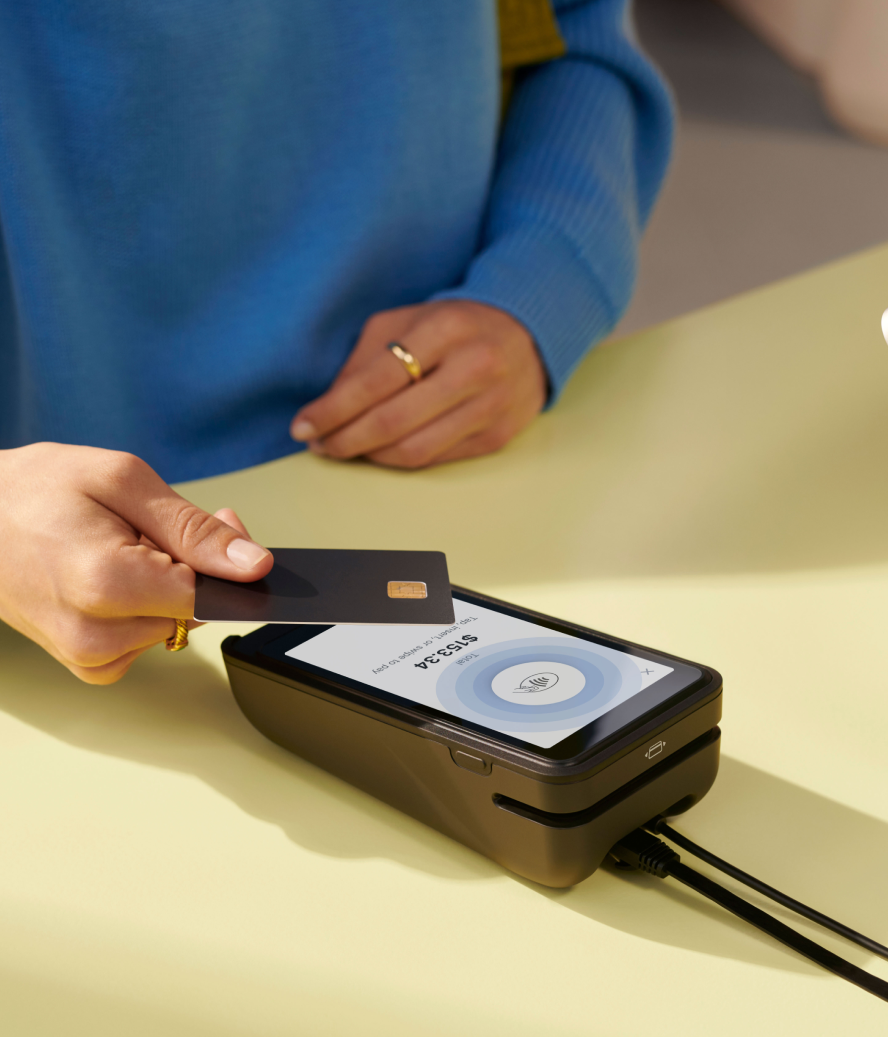
Imagine a boutique owner ringing up a customer on their iPad with Shopify POS. They scan a dress, tap the screen to add a loyalty discount, and the customer pays with a quick tap of their phone. As the receipt prints, the POS tells the online store that the dress is sold out, keeping everything in sync automatically.