Shopify blog


Point-of-sale user interface (POS UI) extensions add custom functionality to Shopify POS. They let store owners run loyalty programs, offer custom discount experiences, and manage retail staff schedules—all from the POS interface your retail team is already familiar with.
If your current POS system doesn’t cover every workflow your business needs, these extensions enable you to build custom tools for your business without switching between systems.
This guide covers how POS UI extensions work, how to choose between pre-built apps and custom builds, and examples of extensions available in the Shopify App Store.
What are POS UI extensions?
POS UI extensions are developer tools that allow you to add custom functionality to your Shopify point-of-sale (POS) system. UI extensions help you manage various workflows, like applying loyalty rewards, collecting customer data and scheduling pickups. They integrate into your existing POS interface, whether you’re installing pre-built apps or creating custom solutions.
Are you a developer? To get started with POS UI extensions, check out developer documentation. It has everything you need to start building your customized workflows including a step-by-step guide, code snippets, screenshots, and more.
How POS UI extensions work
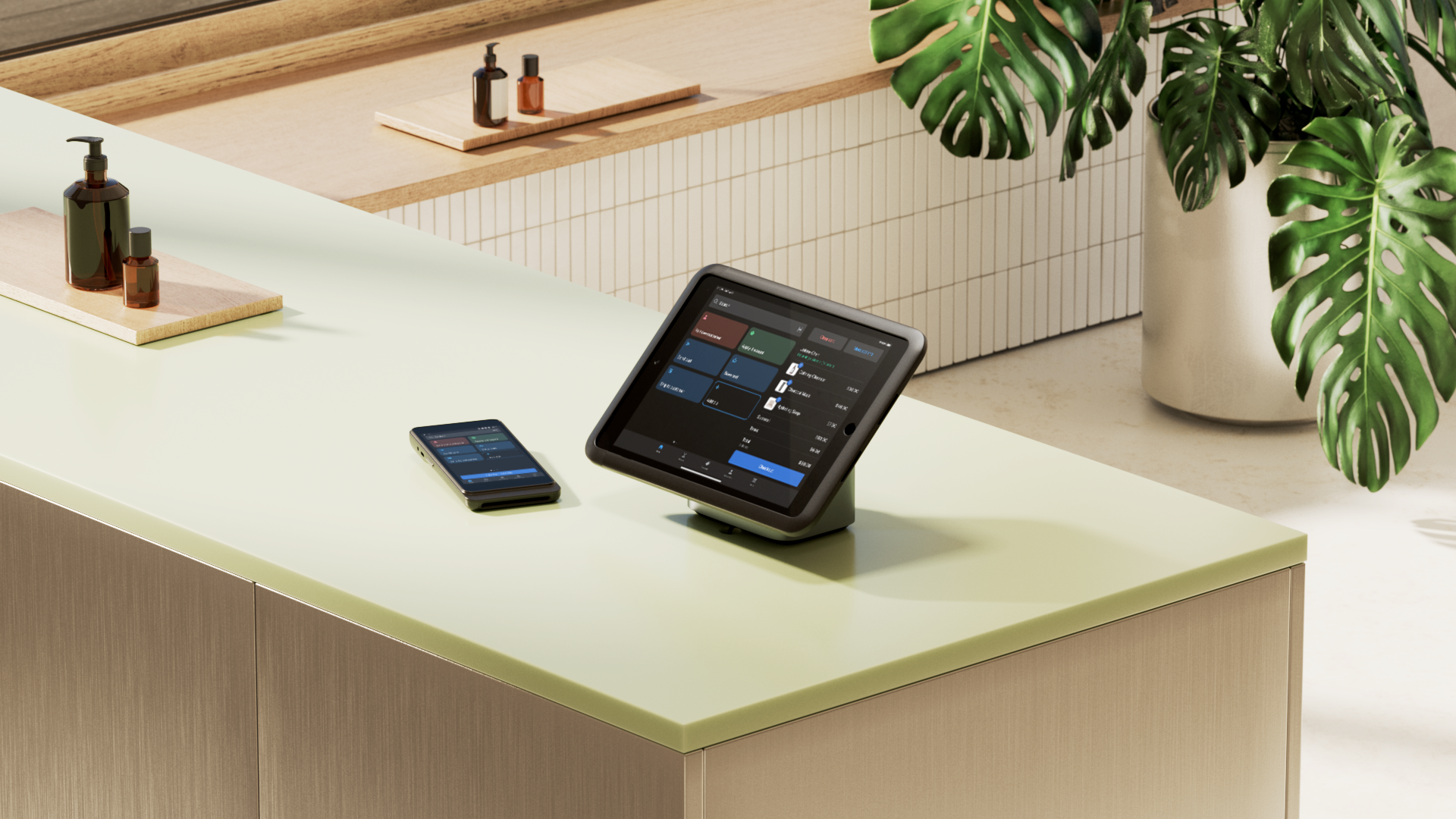
The smart grid is the home screen on the Shopify POS app, where you can add different tiles representing frequently accessed products, collections, features, and third-party retail apps from vetted partners.
The smart grid is a quick shortcut to access your most-used functions. It’s fully dynamic and can respond to changes in the cart. For example, a discount app could apply 50% off a purchase when a customer buys five items. The tile could detect the five items in the cart and go from a disabled state to an enabled state, displaying 50% off available.
Apps can add two types of extensions to Shopify POS: Action extensions and Block extensions. Action extensions are buttons that launch a workflow (like a button that opens a discount modal at checkout). Block extensions are custom sections embedded in a POS screen. Both appear as tappable entry points in the smart grid that staff can use to complete specific tasks. Supported surfaces include smart grid, post-purchase, customer details, product details, order details, draft order details, and manage cart line item.
There are many prebuilt extensions available from the Shopify App Store. These apps work by synchronizing data configured in your Shopify admin, alongside any POS hardware (think barcode scanners, receipt printers, card readers, etc.), giving you a highly customizable POS setup that works for your physical retail stores.

Benefits of POS UI extensions
Not every POS system will have all the same functionality. Third-party Shopify POS integrations compatible with your interface let you expand functionality without implementing a brand-new system. Shopify POS is built to grow with your business’s needs.
The benefits of Shopify POS UI extensions include:
- Quick implementation and customization. Whether you’re using pre-built apps or creating custom Shopify extensions, you can expand your enterprise POS functionality rapidly. Pre-built apps can be implemented immediately, while custom extensions can be built and launched in as little as five days.
- Faster checkout speed. With POS UI extensions, sales associates can easily find the functionality they’re looking for without signing into different apps and delaying the checkout process.
- Reduced time spent on staff training. UI extensions let your retail employees easily move between native POS features and third-party apps from the same interface they’re already trained on.
- Improved customer experience. POS UI extensions also integrate with customer-facing displays. For example, shoppers can see bundles that have been applied to their order or any applicable discounts before paying for their order.
Customizing Shopify POS
A business will have different needs based on their workflows and timelines. With Shopify, they have two options:
- Pre-built. Access a library of pre-built apps in the Shopify App Store for needs like loyalty, scheduling, or upselling.
- Custom extensions. For bespoke workflows, use POS UI extensions to build store-specific logic into the POS interface.
Path 1: Pre-built
To customize your Shopify POS system and add UI extensions from the Shopify app store, find POS compatible apps and install them in your Shopify admin. Each app will have its own setup process, which you can manage from your Shopify dashboard.
To display the new app or a specific feature on your Shopify smart grid:
- Sign into the Shopify POS app
- Press “Add tile”
- Choose the extension you want to add
- Select “Done”
- Optional: Apply the same changes to all POS locations by saving the new smart grid layout as “Default”
Keep in mind that only store owners, or staff with a POS user permission that lets them customize the smart grid, can alter the POS interface.
Troubleshooting common installation issues
Debugging POS UI extensions requires identifying whether the failure occurs in the application programming interface (API), the UI component, or the device connection.
Use these steps to resolve common technical errors:
- Extension QR code/deep link won’t open on Android. Connect the device to a computer and use Android Studio or the Android Debug Bridge (ADB) to open the link if a QR code scan fails. You can also install a deep link opener app from the Play Store to handle these requests.
- Package resolution failed. Check the package.json file in the app root for missing dependencies if the build fails. Reinstall all packages or mark specific modules as external to exclude them from the bundle.
- Identify what’s failing with POS Dev Console. Access the console by tapping the app icon on tablets or the More menu on mobile. Use this tool to track extension errors, toggle app persistence, and remove development extensions from the device.
- API and component errors. Wrap calls in try/catch blocks to capture specific failure data. If the UI displays a generic error message, use console.log to validate that the correct parameters and props are reaching the extension.
- Remote debugging. Inspect Android extensions by connecting the device to a computer and navigating to chrome://inspect in Chrome. For iOS, use the Safari Develop menu on a Mac to view the load.html context. Both platforms require the use of a development store to enable debugging features.
- Extension not appearing on the smart grid. Go to Sales channels > Point of Sale in your Shopify admin, click Settings, then click POS apps in the General section. Confirm the app is installed and the extension is activated for the relevant location. To add it to the smart grid, tap Add tile in the Shopify POS app, select the item you want to add, and tap Save.
- Permission errors.To customize smart grid templates in the Shopify admin, staff members must have the Products > View and Store settings > Locations permissions. To edit the smart grid from Shopify POS directly, staff must have the Customize smart grid permission enabled.
- App crashes or freezes. Close the app fully and reopen it. If the issue continues, check the Shopify App Store to ensure it’s compatible with your current version of Shopify POS. Contact the developer if the problem persists.
Path 2: Custom extensions
Custom POS extensions integrate specific tools into the Shopify POS interface. Use them when a pre-built app doesn’t meet your needs.
These extensions appear as clickable tiles, sections within checkout flows, or other embedded UI surfaces.
Custom extensions add the following capabilities to Shopify POS:
- Smart grid tiles. Add shortcuts and data to the interface using the Tile component to help staff perform frequent actions.
- Home screen workflows. Launch app features directly from the home screen to keep staff within the Shopify POS system rather than switching to third-party tools.
- In-checkout content. Display product details or custom fields within the sales flow to assist staff during the transaction.
- Scanner-based tasks. Manage stocktakes, loyalty card scans, and inventory receiving through integrated scanner extensions.
- Contextual logic. Update tile appearance and functionality automatically based on cart items, device status, or location-specific settings.
Case studies: Custom POS UI extensions in retail
Here are some real-world examples of retailers using these custom capabilities to solve business challenges and improve the customer experience.
Tecovas
Tecovas, a western-wear retailer with more than 30 locations, implemented Shopify POS UI extensions to enhance their clienteling capabilities. The brand, known for its cowboy boots and “radical hospitality” approach, needed to equip store staff with real-time customer information to deliver personalized shopping experiences.
Using custom UI extensions in their POS system, Tecovas surfaces customer information to store staff directly at checkout and integrates RFID inventory data, achieving 99.5% inventory accuracy across their stores. This type of integration can enable features like personalized product recommendations, effective upselling, and loyalty program tracking across channels
“With POS UI extensions, we’re now able to integrate [clienteling] information natively, right into the POS,” says Kevin Harwood, chief technology officer of Tecovas.
Tomlinson’s
Tomlinson’s, a Texas-based pet supply retailer with 18 locations, used Shopify POS to enhance their Pet Club Annual Membership program. Facing limitations with their previous POS system’s discount functionality, they switched to Shopify POS and developed a custom discount app using Shopify Functions.
Working with a web agency, they created a system that automatically tracks membership stock keeping units (SKUs), manages tags, and applies appropriate discounts. This solution ensures seamless omnichannel membership discounts across both online and in-store purchases.
Read: Shopify POS Customization: 3 Use Cases from Top Retailers
Hybrid models
Use this approach if an existing app covers your core needs but requires a specific operational bridge. Shopify supports POS UI extensions within extension-only apps, which can later be converted to embedded app pages for wider distribution.
The hybrid model works well for multilocation retail. Teams can keep a pre-built app for the shared workflow, then add custom tiles or other extensions for location-specific steps. Shopify also supports smart grid templates by location, which makes it easier to tailor POS layouts across stores.
Examples of POS UI extensions available in the Shopify App Store
UI extensions allow you to further customize your interface to meet your business’s needs.
Here are some of the most popular extension categories on the Shopify App Store that can help you manage operations and enhance the customer experience.
- Inventory management
- POS loyalty program
- Pickup and delivery scheduling
- Product bundling and discounts
- Team management
Inventory management
If your business runs on Shopify, inventory tools are already included in the platform at no additional cost.
- Monitor and update stock levels. View, edit, and manage inventory across sales channels and locations from Shopify admin. You can also handle purchase orders and stock transfers in the same place.
- Understand inventory movement. Use inventory history and reporting to see how stock levels change over time, identify trends, improve planning, and support internal audits.
- Set up automated notifications. Add an inventory alert app from the Shopify App Store to receive low-stock updates, or use Shopify Flow to create automated alerts for reorder thresholds and stock-level changes.
- Keep store teams in sync. With Shopify POS Pro, retail staff can update inventory from the POS, make stock adjustments, manage transfers, and keep inventory data accurate across locations in real time.
- Get support from Sidekick. Shopify’s smart assistant, Sidekick, can help simplify inventory-related tasks, surface guidance, and support more accurate day-to-day operations.
Partner apps like Stoq and Ordersify also help to mitigate the financial loss of stockouts. If a product isn’t in stock when a customer visits (and they’re not willing to pay in-store and have the item delivered to their home), retailers can use the POS UI extension to collect their information and reach back out to the customer when the product they expressed interest in is back in stock.
POS loyalty program
Repeat customers ease the pressure to find new ones by encouraging people who’ve already bought from you to shop again.
A POS loyalty program lets retail employees enroll customers into your loyalty program, updates their customer profile when they earn points or rewards, and lets your retail team apply discounts at checkout.
This type of POS UI extension lets you manage these loyalty programs directly from your familiar Shopify POS interface, so sales associates don’t need to switch between multiple apps to see what existing customers can redeem points on. Shoppers can also see their rewards applied to the total purchase price on the customer-facing display.
Apps like Smile.io and Marsello are popular POS loyalty extensions among Shopify retailers. They’re omnichannel, meaning that customers can redeem and spend rewards wherever they shop—online, offline, and any in between.
“Exchanging or returning items and redeeming rewards in-store or online is seamless with Shopify,” says Gosia Piatek, founder of KowTow. “Knowing that our customers can be rewarded for their loyalty regardless of which channel they use to shop gives me confidence that we’re achieving our mission of unifying our customer experience.”
Pickup and delivery scheduling
Apps like Zapiet and Stellar Delivery Date & Pickup take the hassle out of arranging delivery. Customers can visit your online store to view inventory, pay for their order, and arrange a delivery or in-store pickup date.
Displaying this information on your POS interface gives your retail team enough warning to confirm inventory is available and prepare their order for collection.
“We get a huge amount of in-store pickups, and now our sales associates know they don’t have to utilize a bunch of different resources,” says Rasheed Sulaiman, co-founder and CEO of Honey Hair Co. “Once they package and fulfill the order, they hit the button, the customer is notified via text or email, and they can continue on with their other in-store duties.”
Product bundling and discounts
Product bundles and discounts are marketing tools that retailers use to increase basket size and improve the overall shopping experience. If customers have a specific pain point or goal in mind, a combination of products might help them solve it.
Product bundles can take many forms:
- Mix-and-match
- Volume discounts (e.g. buy two, get one free)
- Sample packs
Apps like Bundler and Simple Bundles & Kits are compatible with Shopify POS, meaning you can customize the POS interface and auto-apply bundles or discounts at checkout. Retail employees just need to click the appropriate bundle and the inventory is automatically added to the cart alongside the bundle’s price, ready for payment.
Pro tip: Use Shopify POS’s discount features to apply promotions from the POS dashboard—no third-party apps needed. Coupons automatically sync across your online store and retail locations to ensure omnichannel consistency.

Team management
You can’t run a retail business without employees. But managing retail staff shifts can be complicated, particularly if you’re operating multiple locations. Each team member has a specific set of skills and responsibilities, contracted working hours, and salary—not to mention your labor budgets that need to be considered when planning staff shifts.
Apps like EasyTeam let you add a UI extension to your Shopify POS system to:
- Create shifts and manage schedules
- Track working hours by clocking in and out from the POS
- Attribute commission to sales associates
- Approve timesheets
- Import data into your payroll software for accurate, timely payouts
Transform your retail experience with POS customization
Every retail business is unique, and an off-the-shelf POS system won’t always capture all of your workflows. POS UI extensions can help you close those gaps by adding loyalty programs, scheduling tools, inventory management, and more directly into the Shopify POS interface your team uses every day. The Shopify App Store has pre-built options for every type of retail business, plus options to build something custom to meet your exact needs.
POS UI extensions FAQ
How do you add UI extensions to Shopify POS?
To add an extension, sign in to the Shopify POS app and tap the Add tile on the smart grid. Select the specific extension you want to use and hit Done to finalize the layout. You can also save these changes as a default to instantly apply the new layout across all your retail locations.
Are Shopify POS UI extensions available on all Shopify plans?
POS UI extensions are available on all POS Pro locations.
Can Shopify POS UI extensions customize the checkout experience?
Yes, you can use POS UI extensions to customize the checkout experience. Use Shopify’s Block extensions to add custom sections or In-checkout content to display product details and custom fields during a live transaction.
What’s the difference between POS apps and POS UI extensions?
POS apps are the broader software solutions found in the Shopify App Store that sync your store data and hardware. UI extensions are the developer tools that allow custom apps to function natively within the POS interface.
What are examples of tasks you can automate with POS UI extensions?
You can automate inventory management by using scanners for stocktakes and demand forecasting. Extensions also handle loyalty rewards and product bundles, automatically applying discounts and updating customer profiles at checkout.